
Disclosure: Hushread is my app. I’ve tried to be fair, and I say where the others are the better choice.
If your RSS feeds are not working in new Outlook, nothing is broken on your side: new Outlook for Windows doesn’t support RSS at all. Microsoft says plainly that users “cannot add or remove RSS feeds, nor retrieve content from them” in it (Microsoft Support). Your old RSS folders may still show up, but nothing new arrives. To keep reading feeds in Outlook, switch back to classic Outlook with the toggle. To get off Outlook for feeds, export them to an OPML file from classic Outlook and import that file into an RSS reader.
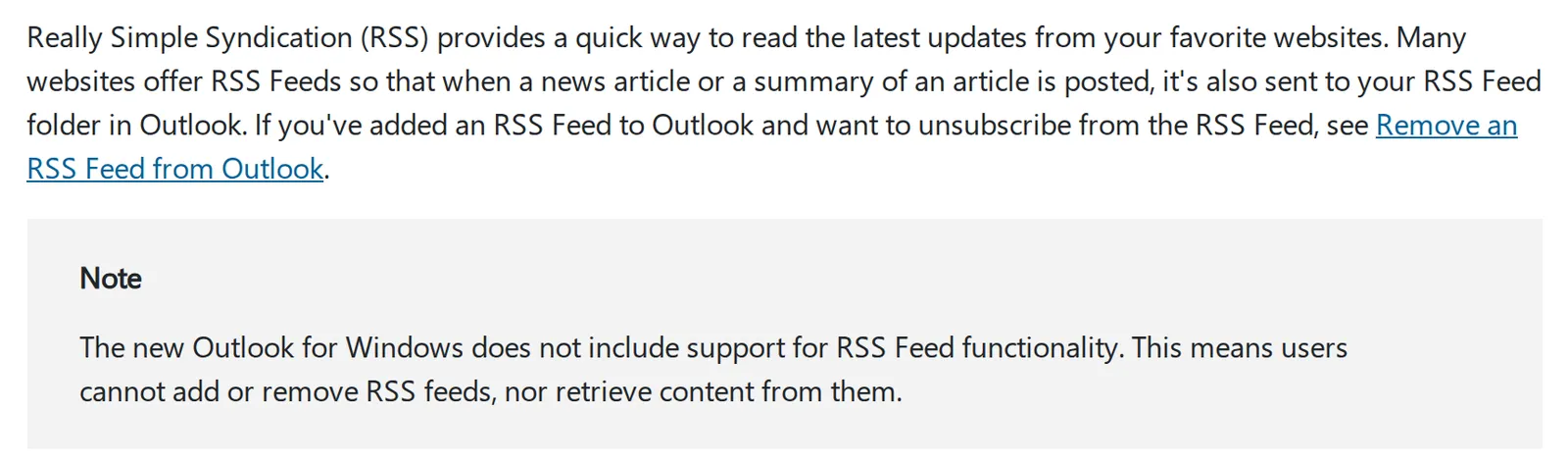 Microsoft Support, “Subscribe to an RSS Feed”, 25 October 2026. Source: support.microsoft.com
Why your RSS feeds stopped updating in new Outlook
The confusing part is that the feeds look like they’re still there. A Microsoft MVP who moderates Microsoft’s Q&A forum explained it in March 2025: when you’ve added feeds in classic Outlook, “the folders and contents will also show up in New Outlook when using an Exchange or Outlook.com account. However, there is no functionality behind it; New Outlook will not collect new items via RSS” (Microsoft Q&A).
Only classic Outlook fetches feeds, so new items arrive only while classic is running, and new Outlook gives you no way to add a feed.
Don’t expect this to change soon. Microsoft’s feature comparison between new and classic Outlook, last updated on September 23, 2026, doesn’t list RSS at all, not even as “Under investigation” or “Upcoming” (Microsoft Support). The page does say that not every feature is listed, so this isn’t a formal no. If you want RSS back, the place to ask is Help › Feedback in new Outlook (Microsoft Support).
Which versions of Outlook support RSS feeds
| Outlook | RSS feeds |
|---|---|
| Classic Outlook for Windows | Yes |
| New Outlook for Windows | No |
| Outlook for Mac | No |
| Outlook on the web and Outlook.com | No way to add a feed |
Microsoft’s RSS help pages apply to classic Outlook for Microsoft 365, Outlook 2024 and Outlook 2021. For the Mac, Microsoft’s answer is one line: “Unfortunately, RSS feeds are not currently supported in Outlook for Mac” (Microsoft Support). For the web version there’s no Microsoft help page at all. A 2023 Q&A thread where users tried the suggested workaround ends with the most-voted reply, from November 2023: “there is no way to add an RSS feed in MS365 online using Outlook” (Microsoft Q&A).
Switch back to classic Outlook to keep your feeds
If you want your feeds in Outlook, classic is the only option. Microsoft says you can switch back “at any time, using the toggle in new Outlook”, or choose Go to classic Outlook from the Help tab (Microsoft Support).
Many people never chose new Outlook in the first place. Microsoft switches some personal Microsoft 365 accounts automatically, and since January 2025, classic Outlook users on a Business plan in the Current Channel are also switched after a series of in-app notices. Work and school accounts on Enterprise plans aren’t switched “at this time”. To stop the automatic switch, untick Automatically switch me to new Outlook under File › Options › General › New Outlook options in classic Outlook.
How long can you stay? Microsoft moves new Outlook through three stages: opt-in, then opt-out (new Outlook on by default, classic still available), then cutover, when “users won’t be able to switch back”. Enterprise admins get at least 12 months’ notice before each of the last two, and “existing installations of classic Outlook through perpetual and subscription licensing will continue to be supported until at least 2029” (Microsoft Learn). For Enterprise, the opt-out stage starts in March 2027, moved from April 2026, according to Microsoft 365 Message Center post MC949965, updated on February 20, 2026 (mirror of the post). No cutover date has been announced.
Back in classic, a missing feed is easy to add again: right-click the RSS Feeds folder, choose Add a New RSS Feed, enter the feed’s URL, then Add › OK (Microsoft Support).
Classic buys you a few years. It doesn’t buy you a future, which is why I’d export the feeds now, while it’s still easy.
Classic Outlook RSS feeds not updating: what to check
If you’re already in classic Outlook and a feed still won’t update, check these.
- The update limit. Open File › Account Settings › Account Settings, then the RSS Feeds tab, select the feed and click Change. Leave Update Limit ticked. Microsoft warns that “some publishers strictly enforce these limits” and that a publisher “can temporarily or permanently block your access” if Outlook checks too often (Microsoft Support).
- Send/Receive groups. “If a value isn’t specified by your RSS Feed, the Send/Receive setting for RSS Feeds is used.” Check Send/Receive › Send/Receive Groups to see that RSS is included and how often it runs.
- Common Feed List sync. Feeds you subscribe to from a browser only reach Outlook if Synchronize RSS Feeds to the Common Feed List (CFL) in Windows is on, under File › Options › Advanced (Microsoft Support).
- The feed itself. Sometimes Outlook is fine and the site stopped updating its feed, moved it or started blocking readers. Open the feed address in a browser and look at the date of the newest item. Why an RSS feed stops updating walks through those checks.
Export your Outlook RSS feeds to an OPML file
OPML is the standard file for a list of feeds, and almost every reader can import it. You need classic Outlook for this, since new Outlook has no RSS tools.
- On the File menu, click Open and Export › Import/Export.
- Click Export RSS Feeds to an OPML file, then Next.
- Tick the feeds to include (Select All ticks them all), then Next.
- Click Browse, choose where to save, type a file name, then Save and Next.
Microsoft notes that “the exported file, with an extension of .opml, can be imported into Outlook or other RSS programs” (Microsoft Support). Before you import it anywhere, you can open it in the free OPML viewer to check the list and spot broken or duplicate entries. What is OPML explains the format if it’s new to you.
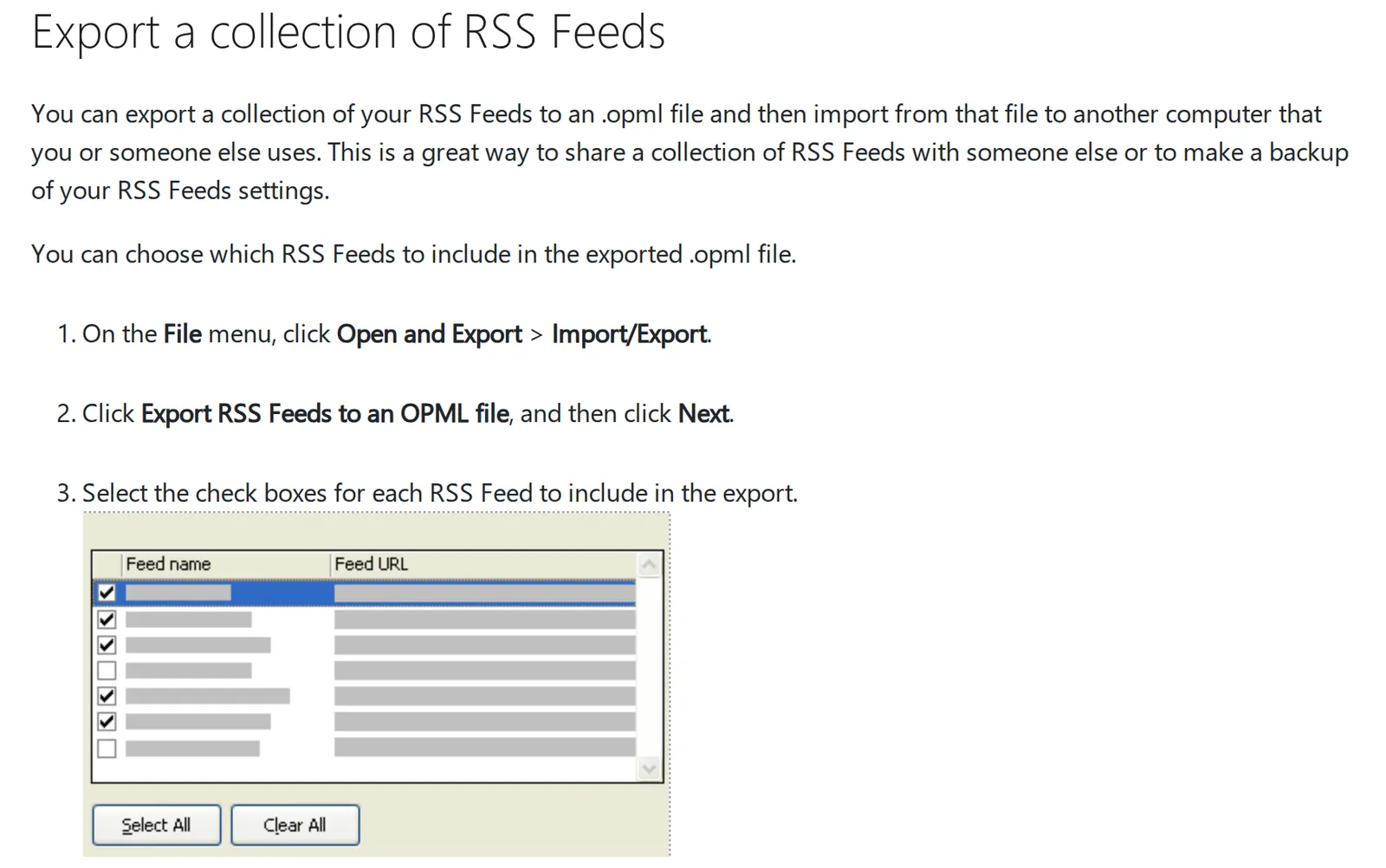 Microsoft Support, “Share or export RSS Feeds”, 25 October 2026. Source: support.microsoft.com
Move your feeds to an RSS reader
In Hushread, open Add source, tap Import OPML instead and choose the file you exported. Any folders in the file are kept (Hushread docs). From then on every article from your feeds arrives newest first, with nothing ranked or injected, on iPhone, Android and the web. That’s the point after an Outlook switch: no app update can quietly take the feeds away again. There’s no Windows app, but the web app at app.hushread.com runs in any browser. The free plan has no limit on sources, so every feed in the file comes across.
Hushread is a reader, not an email client, so your feeds won’t sit next to your mail anymore, and it doesn’t export OPML yet. If you’d rather have a desktop app on your PC, the best RSS readers for Windows compares the options.
FAQ
What is the RSS Feeds folder in Outlook?
It’s where classic Outlook puts the items from feeds you subscribe to, one subfolder per feed. In new Outlook the folder can still appear for Exchange and Outlook.com accounts, but it only shows what classic Outlook collected, and nothing new arrives unless classic is running.
Does new Outlook support RSS feeds?
No. Microsoft says new Outlook for Windows does not include RSS, so you can’t add or remove feeds or get new items from them. Microsoft’s feature comparison page doesn’t list RSS as planned.
Why are RSS feeds not working in Outlook 365?
If you’re in new Outlook, it’s because new Outlook has no RSS. In classic Outlook for Microsoft 365, check the feed’s Update Limit, your Send/Receive groups and the Common Feed List setting, and open the feed in a browser to see if it still updates.
Can I add RSS feeds in Outlook on the web?
No. Outlook on the web and Outlook.com have no option to add a feed, and Microsoft has no help page describing one. Use classic Outlook for Windows or an RSS reader.
How do I get my RSS feeds out of Outlook?
In classic Outlook, go to File › Open and Export › Import/Export and choose Export RSS Feeds to an OPML file. Any RSS reader that imports OPML can read the file.
If your organization still runs classic Outlook and feeds are a small part of your day, staying there is a reasonable choice for now: Microsoft supports existing classic installs until at least 2029. If you’ve already been moved to new Outlook, or you’re on a Mac, export the feeds and pick a reader; Hushread is one, free with no limit on feeds.