
Docs / FAQ
Frequently asked questions
Short answers to what people ask most, with screenshots that show where to tap. The numbers on each screenshot match the steps above it.
Getting started
Is Hushread free?
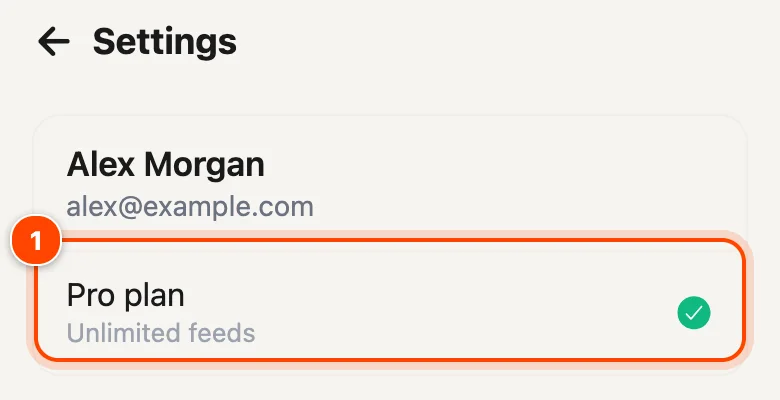
Yes. The free plan covers up to 5 sources, with story timelines, Trending, quick takes, narration, folders, tags and search, on iPhone, iPad, Android and the web. Pro removes the source limit for $1.25 a month, billed yearly ($14.99 a year in the US; the store shows your local price).
More: Plans and billing
Which devices does Hushread work on?
iPhone and iPad, Android, and any modern browser at app.hushread.com. Sign in with the same account everywhere and your sources, folders, tags, Read later list and read state follow you. Push notifications and the home-screen widget are in the phone apps only.
More: Apps and devices
How do I add a source?
You can follow an RSS feed, a website (even one that has no feed) or a topic.
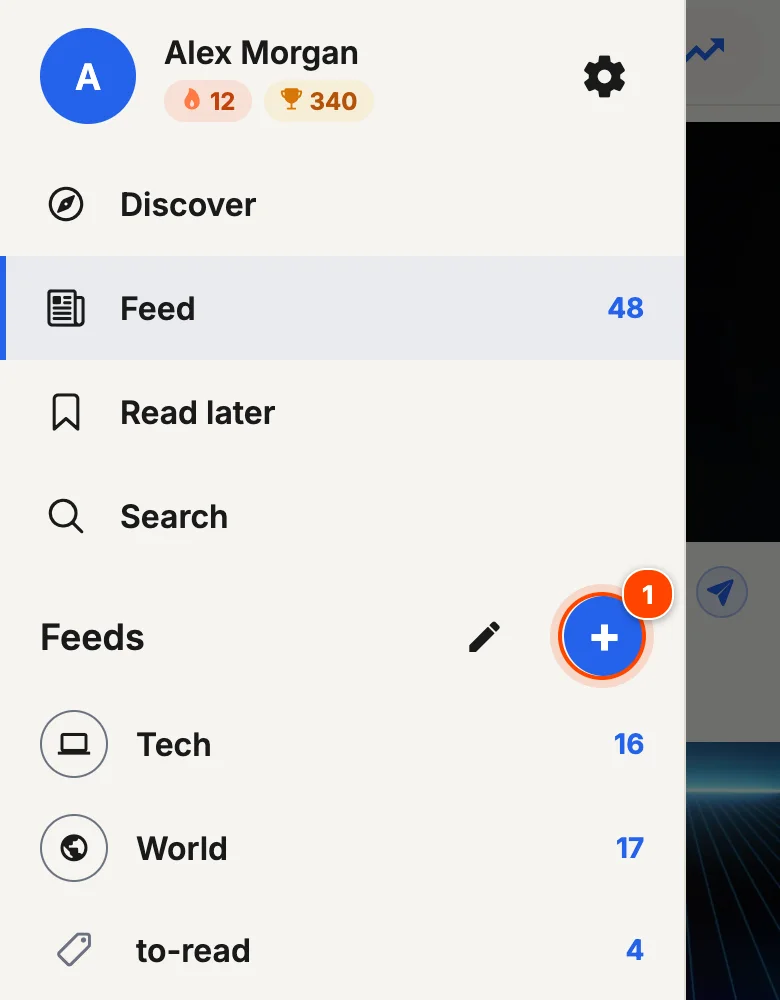
- Open the menu (☰) and tap + next to Feeds.
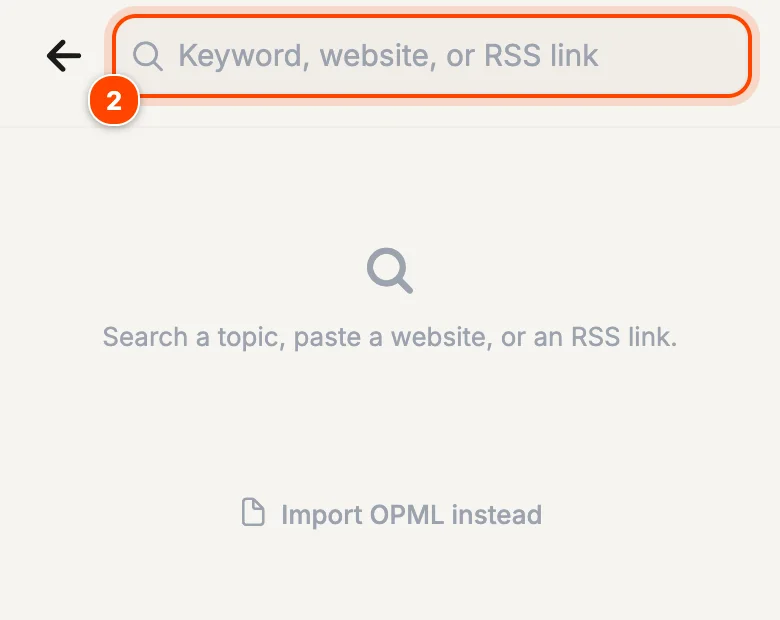
- Type a keyword, a website like theverge.com, or paste an RSS link.
- Pick a result, or tap Add from link. If the site has no feed, choose Follow this page and Hushread checks it for new articles.
More: Add a source · Discover sources
Can I follow Reddit, YouTube or Facebook?
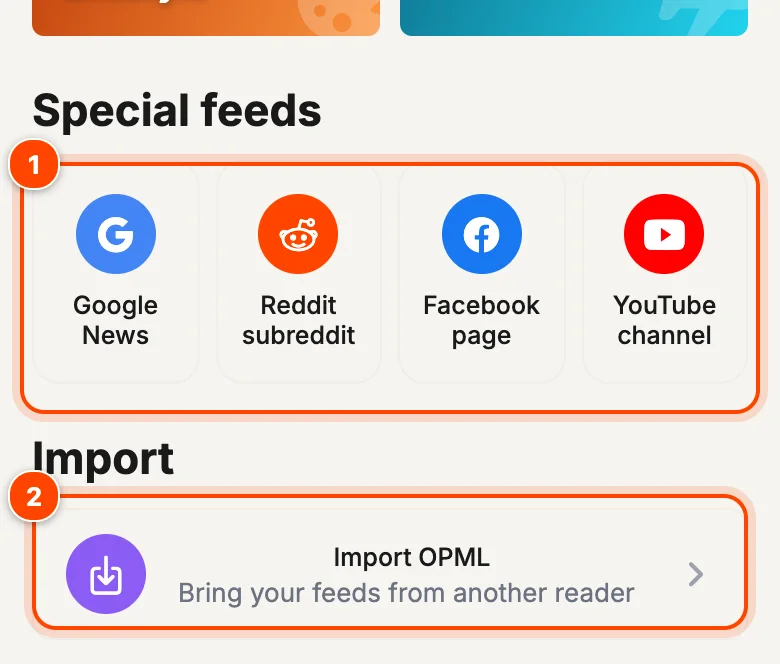
Yes. Open the menu (☰), tap Discover and scroll to Special feeds. Pick Reddit subreddit, YouTube channel or Facebook page, enter the name or link, and tap Preview and add. Pasting a YouTube channel or Facebook page link into Add source works too. Only public Facebook pages can be followed.
Can I follow a topic instead of a website?
Yes. Open Add source, type the words, and tap Track "…" on the internet. Every new article that mentions the topic, from any outlet, arrives in your feed. Be specific: chip exports finds far more useful coverage than chips. A topic counts as one source.
More: Follow a topic
How do I move my feeds over from another reader?
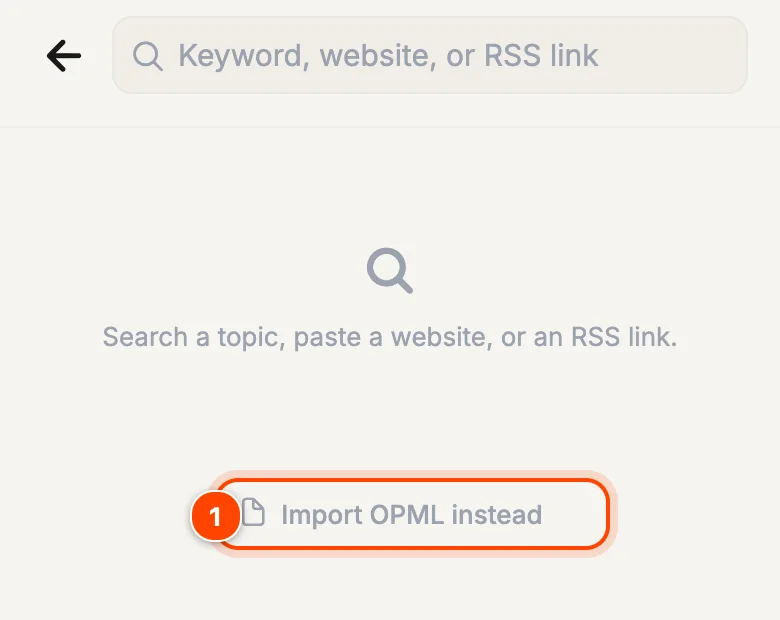
Export an OPML file from your old reader (look for Export OPML in its settings). In Hushread, open Add source, tap Import OPML instead and choose the file. Folders in the file are kept, and feeds you already follow are skipped. On the free plan the import fills the free slots you have left, up to 5 sources. Hushread doesn't export OPML yet.
More: Import OPML · OPML viewer and validator
Reading
Does an algorithm decide what I see?
No. Your feed is every article from the sources you chose, newest first. Nothing is ranked, boosted or injected. Trending is a separate screen that counts how many different publishers are covering a story; it never reorders your feed.
Where does Hushread use AI?
In a handful of places, and never to choose or reorder what is in your feed:
Quick takes are short AI-written summaries of an article. You can turn them off.
Stories: AI links different outlets' articles about the same event, and writes the summary on a full story page.
Sections, tone and quizzes: AI sorts articles into sections for Trending, judges an article's tone for rules, and writes the quiz questions.
Listen: the narration voices are AI voices.
Headlines and article text are always the publisher's own. Hushread never rewrites them.
What is a quick take?
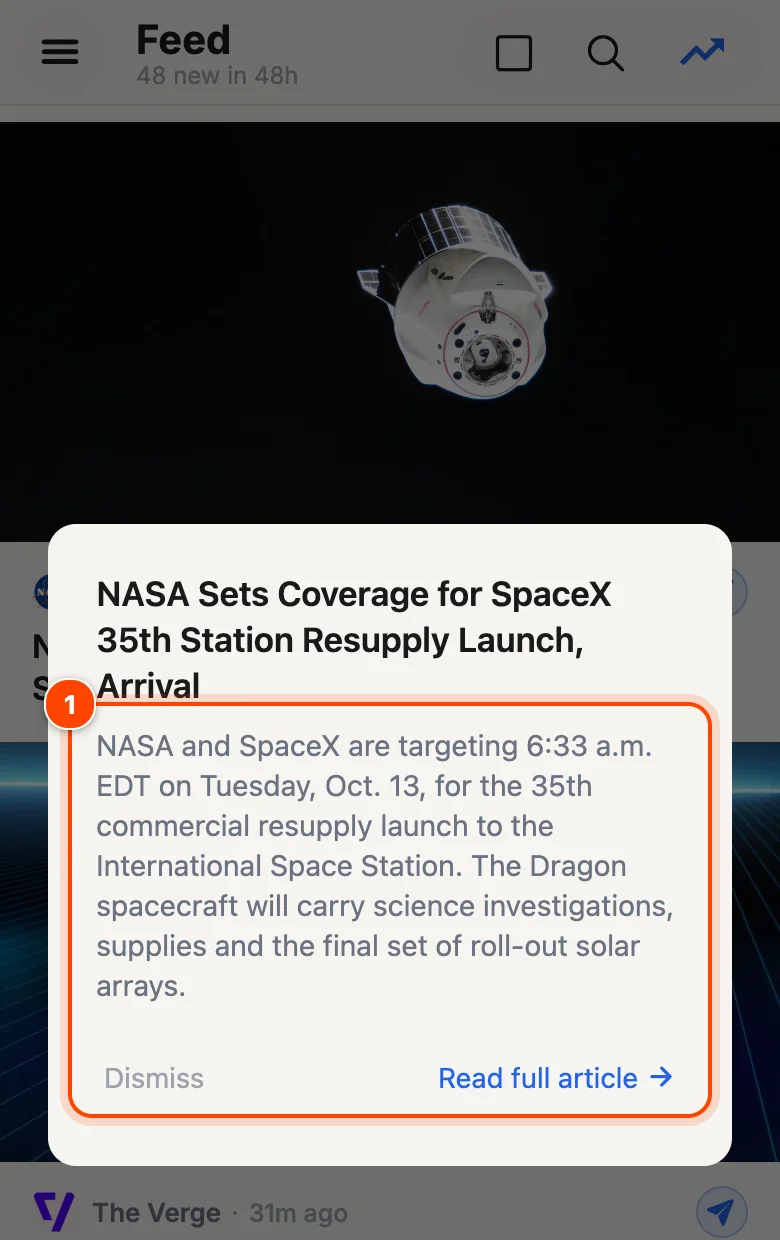
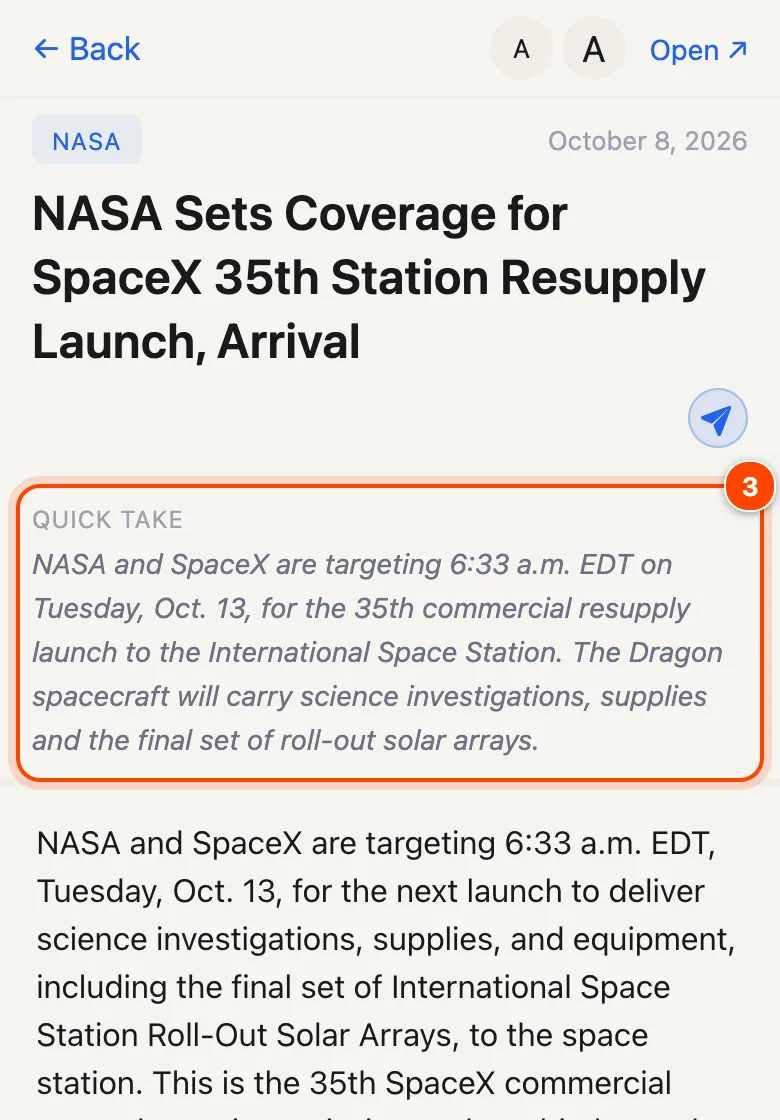
A quick take is a short AI-written summary of one article. Swipe an article to the left in your feed to read it without opening the article, then tap Read full article or Dismiss. The same quick take sits at the top of the article when you open it.
More: Reading articles
Can I turn off AI summaries?
Yes. Quick takes are on by default, and one switch turns them off everywhere.
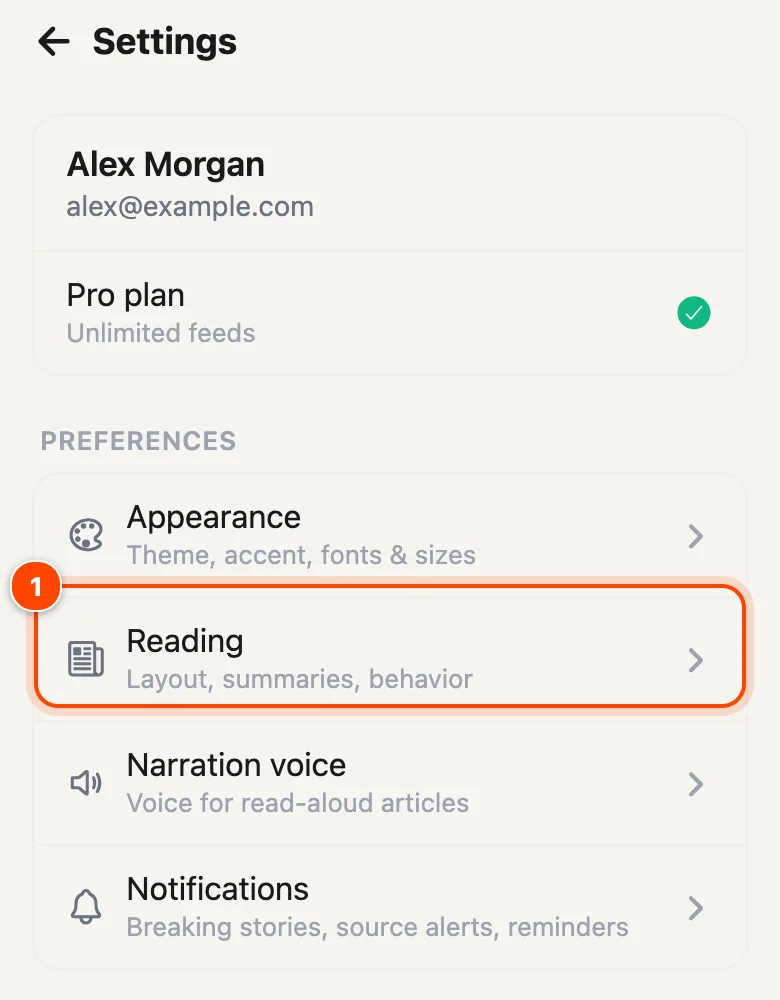
- Open Settings (menu ☰, then the gear) and tap Reading.
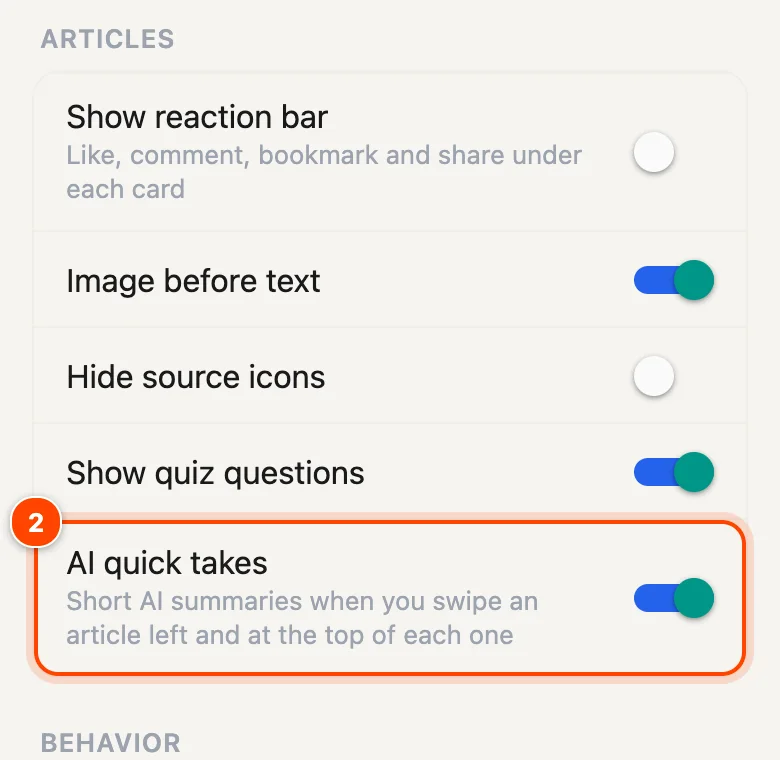
- Switch off AI quick takes.
- The Quick take box at the top of articles is gone, and swiping an article left no longer opens a summary.
With the switch off, Hushread also stops writing a quick take when you open an article. The setting follows your account to your other devices. If you don't see the switch, update the app.
More: Settings
How do I change the layout, text size or theme?
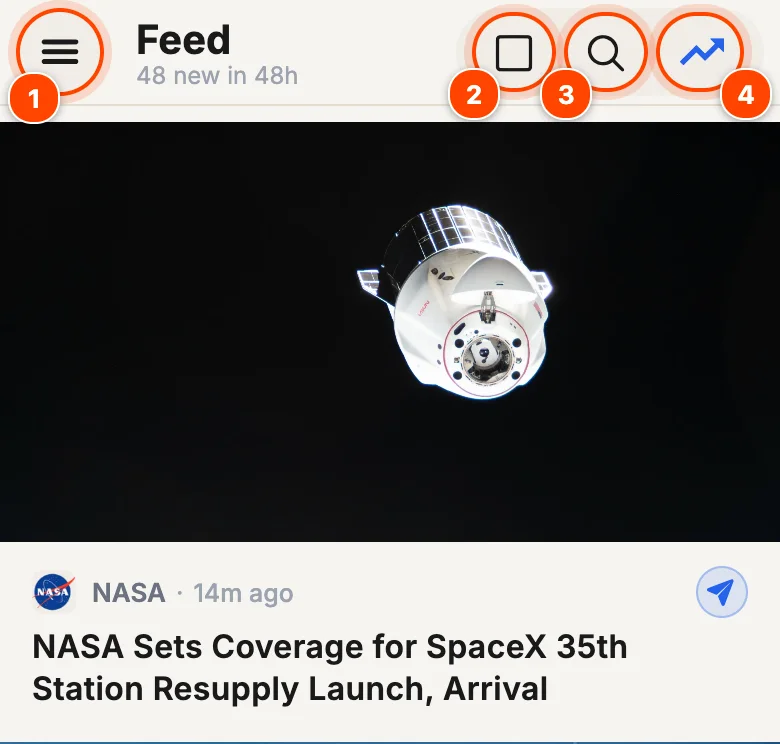
Layout: tap the layout icon in the Feed header to switch between Card, Magazine and List, or set it in Settings › Reading.
Theme, colour and fonts: Settings › Appearance has System, Light and Dark themes, 12 accent colours, title and body fonts, and text size and weight for the feed.
Inside an article: A− and A+ change the text size.
More: Settings
Why do articles disappear after I read them?
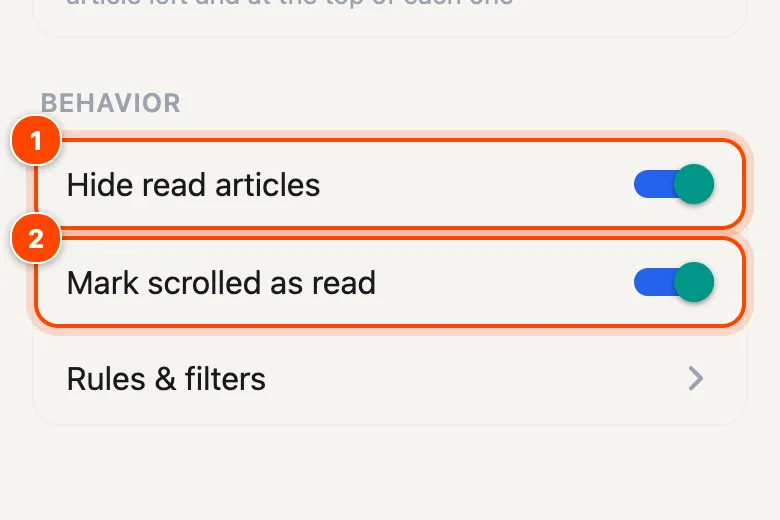
Opening an article marks it read, and Hide read articles (on by default) leaves read articles out the next time the feed loads. Mark scrolled as read (also on by default) marks articles read as you scroll past them.
To keep everything in view, switch both off in Settings › Reading. To clear a whole feed, folder or tag at once, swipe left on it in the menu and confirm Mark all as read.
More: Your feed
Can I listen to articles?
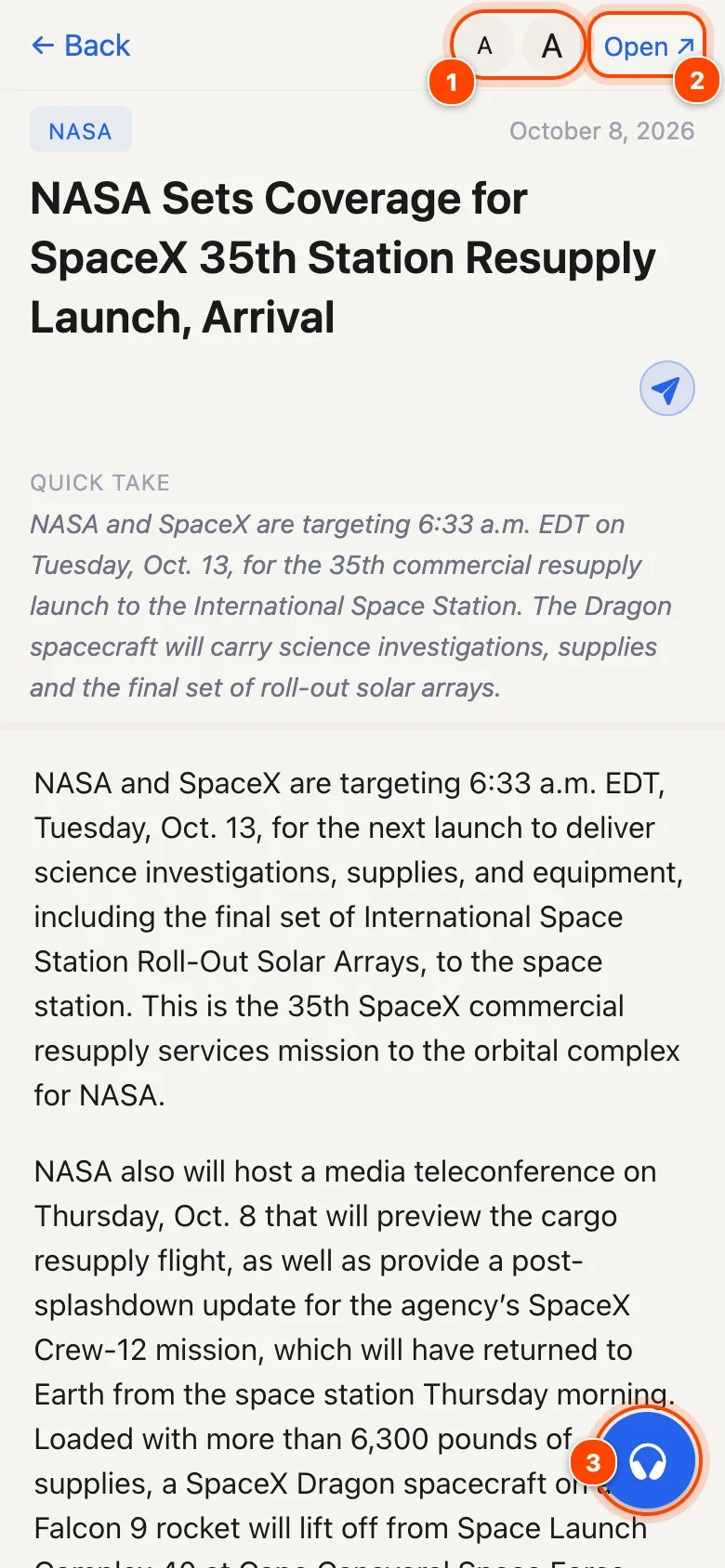
Yes. Open an article and tap the headphones button. Audio starts within moments, a mini player stays on screen while you keep browsing, and on iPhone and Android it keeps playing with the screen locked. Choose from seven voices in Settings › Narration voice.
More: Listen to articles
Why is there one card when several outlets cover the same news?
Hushread links articles about the same event. You see one card with an Also mentioned in strip listing the other outlets, instead of the same headline over and over. When 8 or more publishers cover a story, See whole story opens a timeline of how it unfolded.
More: Stories and timelines
How do I save an article for later?
Tap the bookmark icon on an article, in the reader or on a card. Saved articles are in the menu (☰) under Read later. Tap the bookmark again to remove one.
More: Read later
Notifications
How do I turn on push notifications for a source?
New sources start with alerts off, so nothing buzzes until you ask for it.
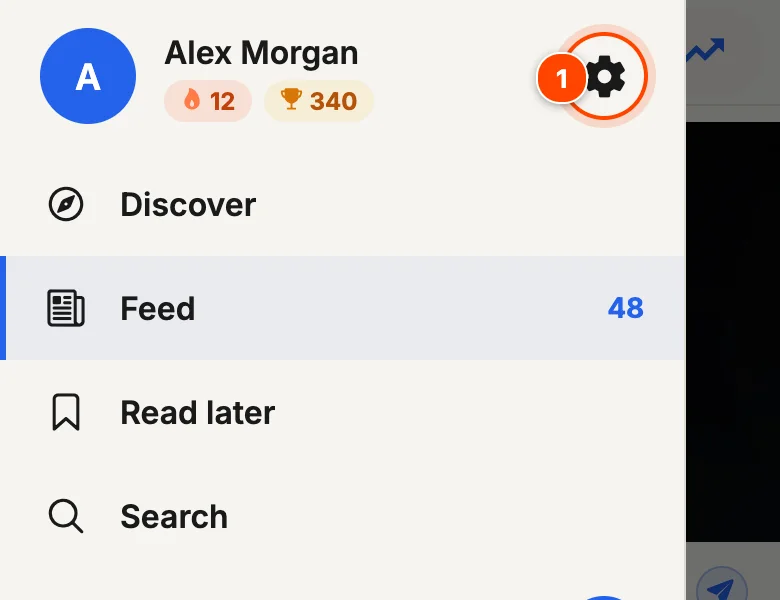
- Open the menu (☰) and tap the gear next to your name.
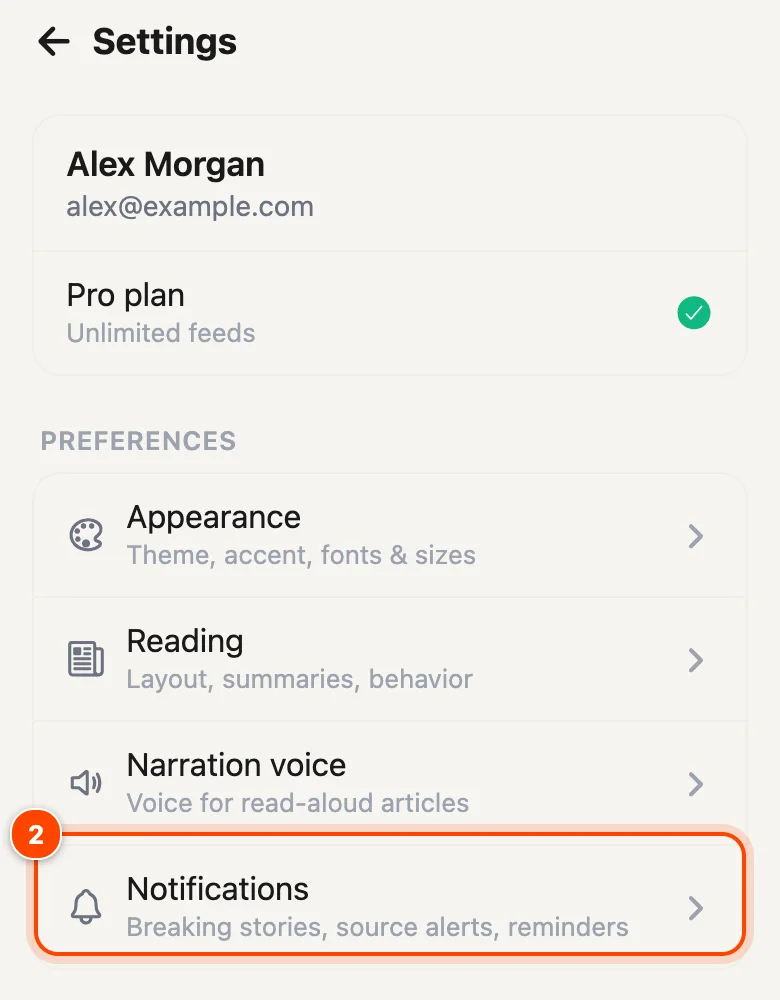
- Tap Notifications.
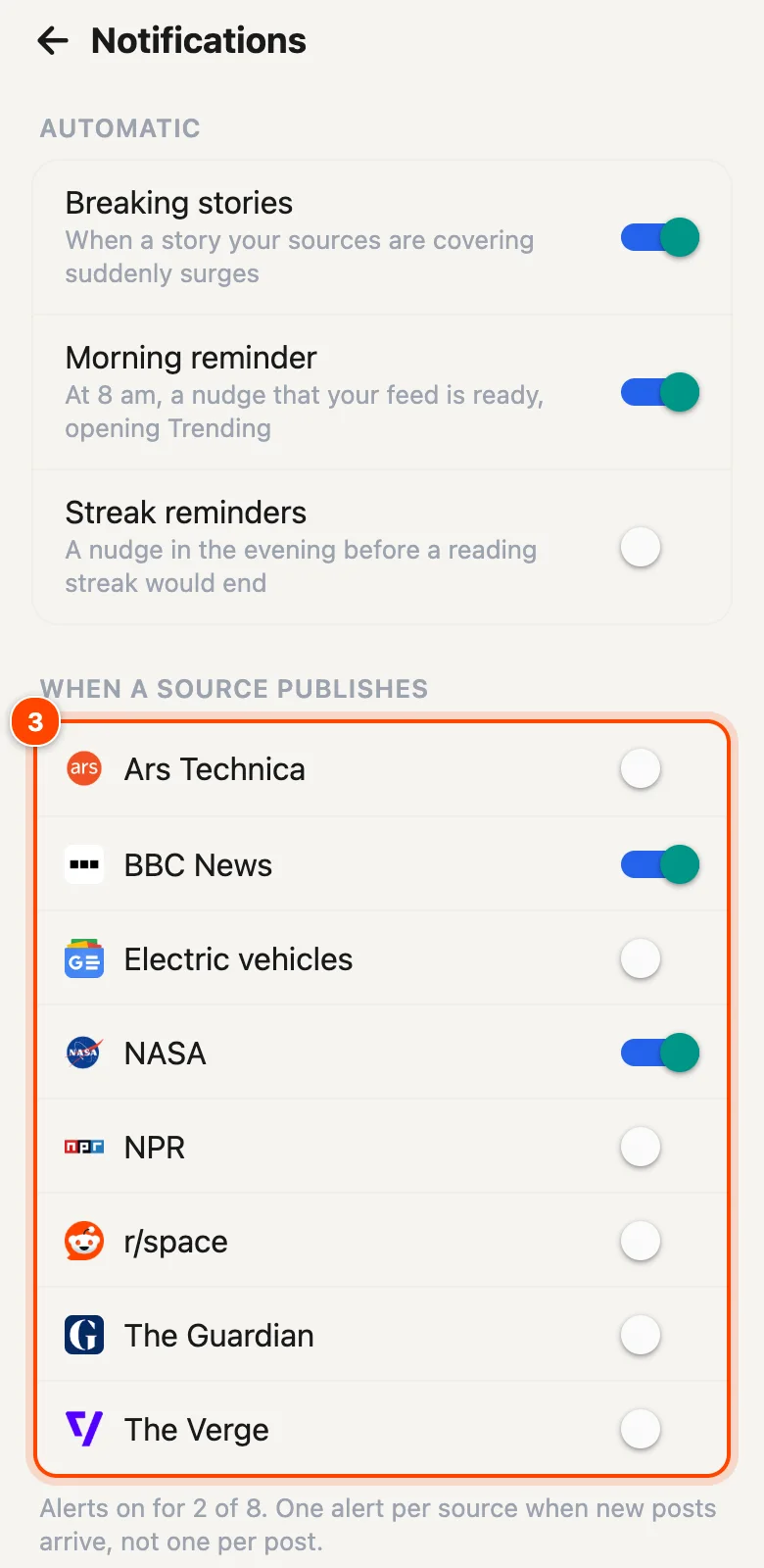
- Under When a source publishes, switch on each source you want alerts for. If you follow more than 8 sources, tap Show all at the bottom of the list.
You get one alert per source when new articles arrive, not one per article. If nothing comes through, check that notifications are allowed for Hushread in your phone's settings. Push alerts work in the iPhone, iPad and Android apps; the web version doesn't send them. If you don't see the Notifications screen, update the app.
More: Notifications
Can I get an alert only when an article mentions a word?
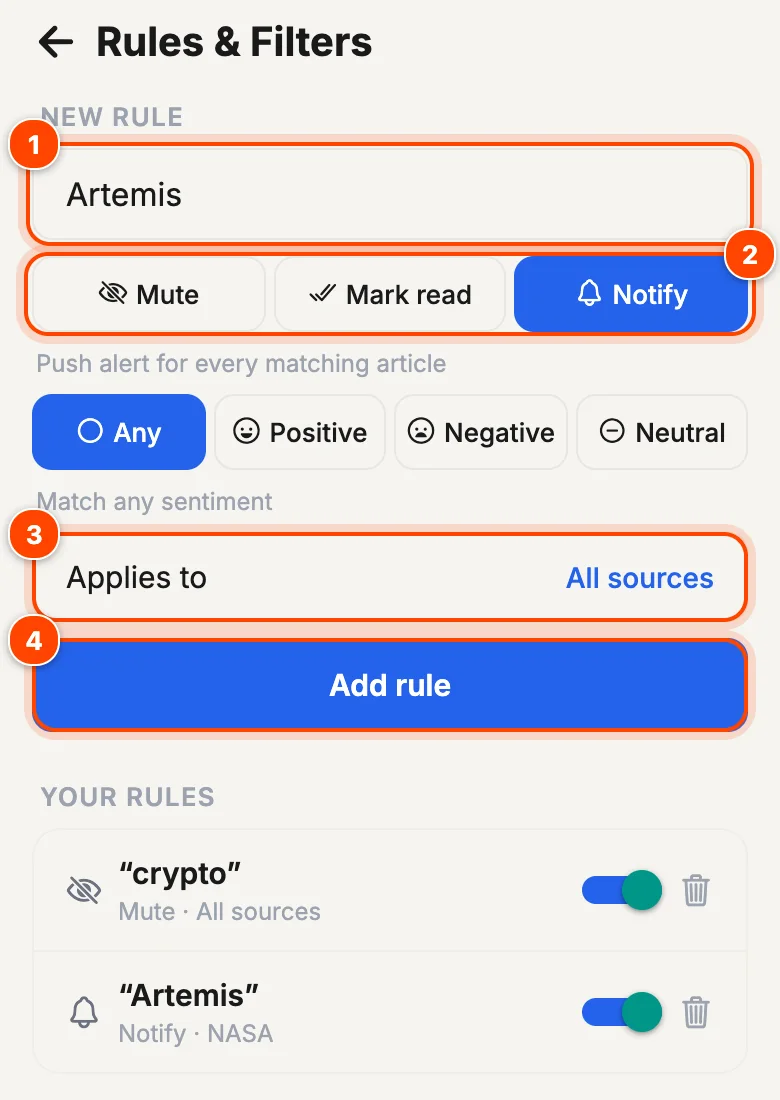
Yes, with a Notify rule. Open the menu (☰) and tap Rules, then:
- Type the keyword or phrase.
- Choose Notify.
- Under Applies to, pick all sources, one folder or one source.
- Tap Add rule.
Notify rules send alerts even for sources whose own notifications are off.
More: Rules and filters
How do I get fewer notifications?
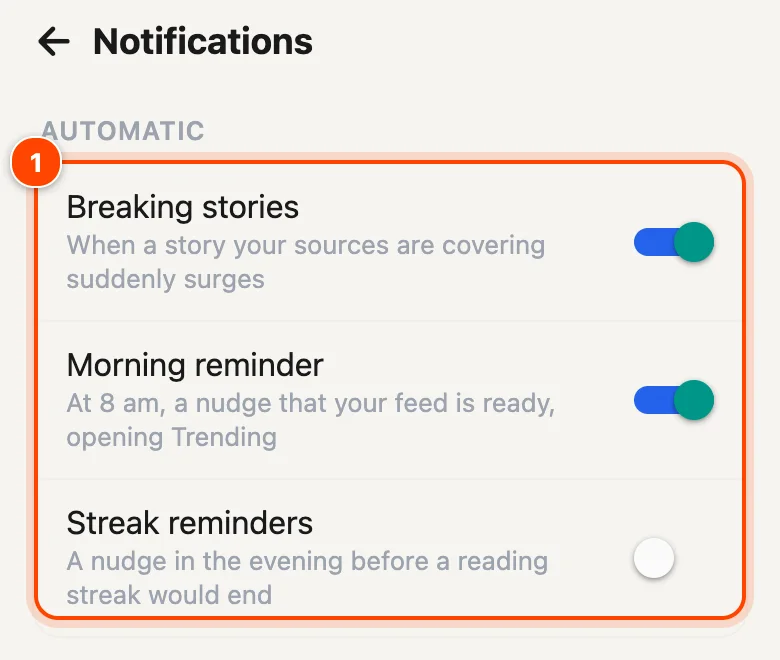
Open Settings › Notifications. Under Automatic, switch off Breaking stories, Morning reminder or Streak reminders. Under When a source publishes, switch off any source. To stop everything, turn off notifications for Hushread in your phone's settings.
More: Notifications
Organise
How do I put sources in folders?
In the menu (☰), swipe right on a source (or long-press it) and tap Choose folders, then Create new folder or pick an existing one. A source can be in more than one folder. Swipe right on a folder to rename it, change its icon, share a copy by email or set it as your start screen.
More: Folders and tags
How do I reorder or unfollow sources?
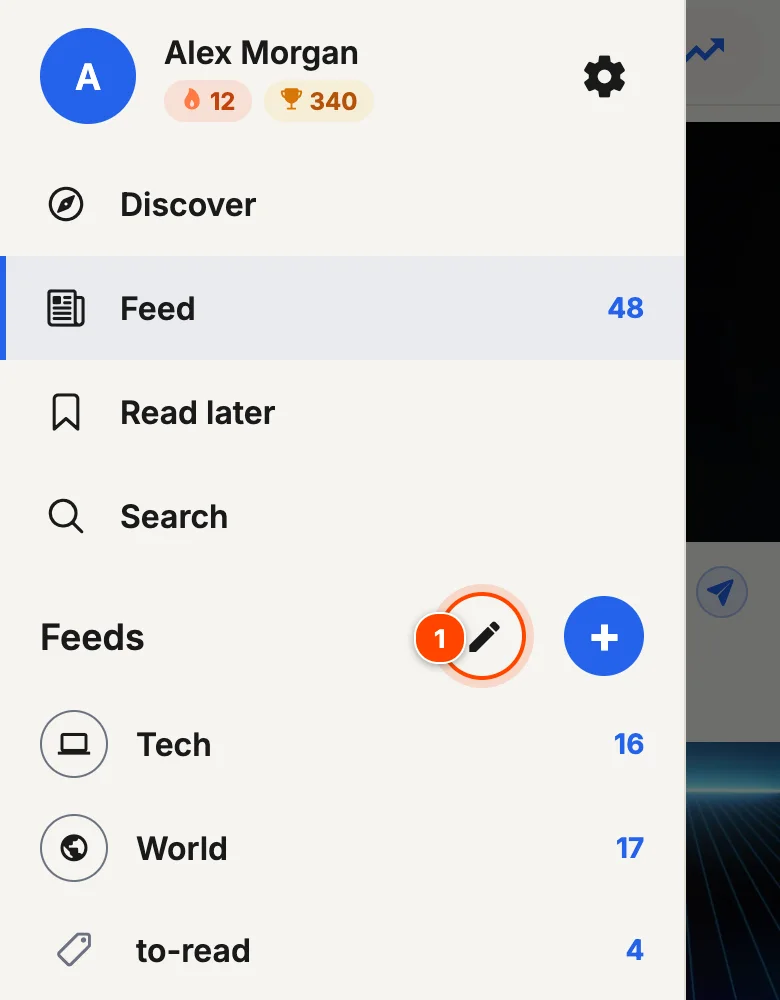
Tap the pencil next to Feeds in the menu. Long-press and drag to reorder, or tap Select to unfollow several sources at once. To unfollow just one, swipe right on it in the menu (or long-press it) and tap Unfollow.
More: Folders and tags
How do I hide a topic I don't want to see?
Create a Mute rule. Open the menu (☰), tap Rules, type the word (for example crypto), leave Mute selected and tap Add rule. Matching articles are hidden from your feed. A rule can cover all sources, one folder or one source.
More: Rules and filters
Can Hushread open on one folder instead of everything?
Yes. In the menu, swipe right on a feed, folder or tag (or long-press it) and tap Set as start screen.
More: Your feed
Account and plans
How do I upgrade to Pro, or cancel it?
Tap Upgrade at the top of Settings, then Subscribe. Pro is a yearly subscription through the App Store or Google Play. On the web, subscribe in the phone app and your Pro plan syncs automatically.
To cancel on iPhone or iPad, go to Settings › your name › Subscriptions › Hushread. On Android, go to Play Store › your profile › Payments & subscriptions › Subscriptions › Hushread. If Pro ends, you keep the sources you already follow.
More: Plans and billing
I reinstalled the app. How do I get Pro back?
Open the upgrade screen and tap Restore purchase. If it says No subscription found, check that you're signed in to the store account you subscribed with.
More: Plans and billing
I forgot my password. What now?
On the sign-in screen tap Forgot password?, enter your email and tap Send code. Enter the 6-digit code from the email (it works for 15 minutes) and choose a new password. If you signed up with Google, Apple or Facebook, there is no password: use the same button to sign in.
More: Your account
How do I delete my account?
Tap Settings › Request account deletion, or email [email protected] from the address on your account. Requests are usually processed within 7 days. Cancel any Pro subscription in the App Store or Google Play separately.
More: Your account
How do I reach support?
Email [email protected], or tap Settings › Contact support. A person replies.
Didn't find your question? Email [email protected] and a person will reply, or browse the docs.