
Disclosure: Hushread is our app. We’ve tried to be fair, and we say where the others are the better choice.
When Google Discover is not working, the cause is usually one of three things: the Discover switch is off, the account setting that feeds it (Search Services History, plus Personalized recommendations) is off, or the surface you are looking at is not one your phone, country or account gets. Check them in that order. Open the Google app, tap your profile picture, then Settings, then General, and make sure Discover is on (Google support). If it already is, work down the list below.
Restarting the phone and clearing the cache come later. Google’s own pages point at settings first.
First, work out which Discover is missing
Discover shows up in more than one place, and each has its own switch. On Android, Google lists three: in the Google app, in your browser on google.com, and “On some devices, swipe right from your device’s home screen” (Google support). On iPhone and iPad it lists two: the Google app, and google.com in your browser (Google support). Chrome’s new tab page has a Discover feed of its own.
| Where it is missing | The switch to check |
|---|---|
| Google app (Android, iPhone, iPad) | Profile picture, Settings, General, Discover |
| google.com in a phone browser | Profile picture, More settings, Other settings, Show Discover on home page |
| Chrome’s new tab page on Android | More, Customize new tab page, Discover feed |
| Swipe right on a Galaxy home screen | Touch and hold the home screen, swipe right, the switch at the top |
One warning before you start. Google’s Discover help page currently opens with a notice that it is “updating settings for Google Search services” and that the settings it describes “are being updated so may not match your current experience”. If a menu name below is not on your phone, that is why. Google says the updated settings are also at account.google.com.
Fix 1: turn the Discover switch back on
In the Google app. On Android the path is your profile picture or initial at the top right, then Settings, then General, then the Discover switch (Google support). The iPhone and iPad page gives the same path (Google support).
On google.com in your phone’s browser. Tap your profile picture or initial, then More settings, then Other settings, and check Show Discover on home page. Google marks this one “isn’t available in all countries or languages” on Android and “may not be available in all languages and countries” on iPhone, so its absence may not be a fault.
In Chrome on Android. Open a new tab, tap More at the top right, then Customize new tab page, then Discover feed, and turn it on. Chrome’s help page adds a condition that is easy to miss: to customize the new tab page “you must be signed in to your Google Account and use Google as your default search engine” (Chrome help).
On a computer. Google’s steps are google.com, Settings at the bottom right, Search settings, Other settings, then the Discover switch, again with the note that it “isn’t available in all countries or languages” (Google support).
Fix 2: turn on Search Services History and Personalized recommendations
This is the step most fix lists skip, and it is step 1 on Google’s own Discover page. Google’s developer documentation describes Discover as content “related to their interests, based on their Web and App Activity” (Google Search Central). An account that saves no activity gives it little to work with.
On Android, per Google (Google support):
- Open the Google app.
- Tap your profile picture or initial, then Search history, then Search Services History is off.
- Turn on Search Services History.
- Go back, tap your profile picture or initial, then Search personalization.
- Turn on Personalized recommendations.
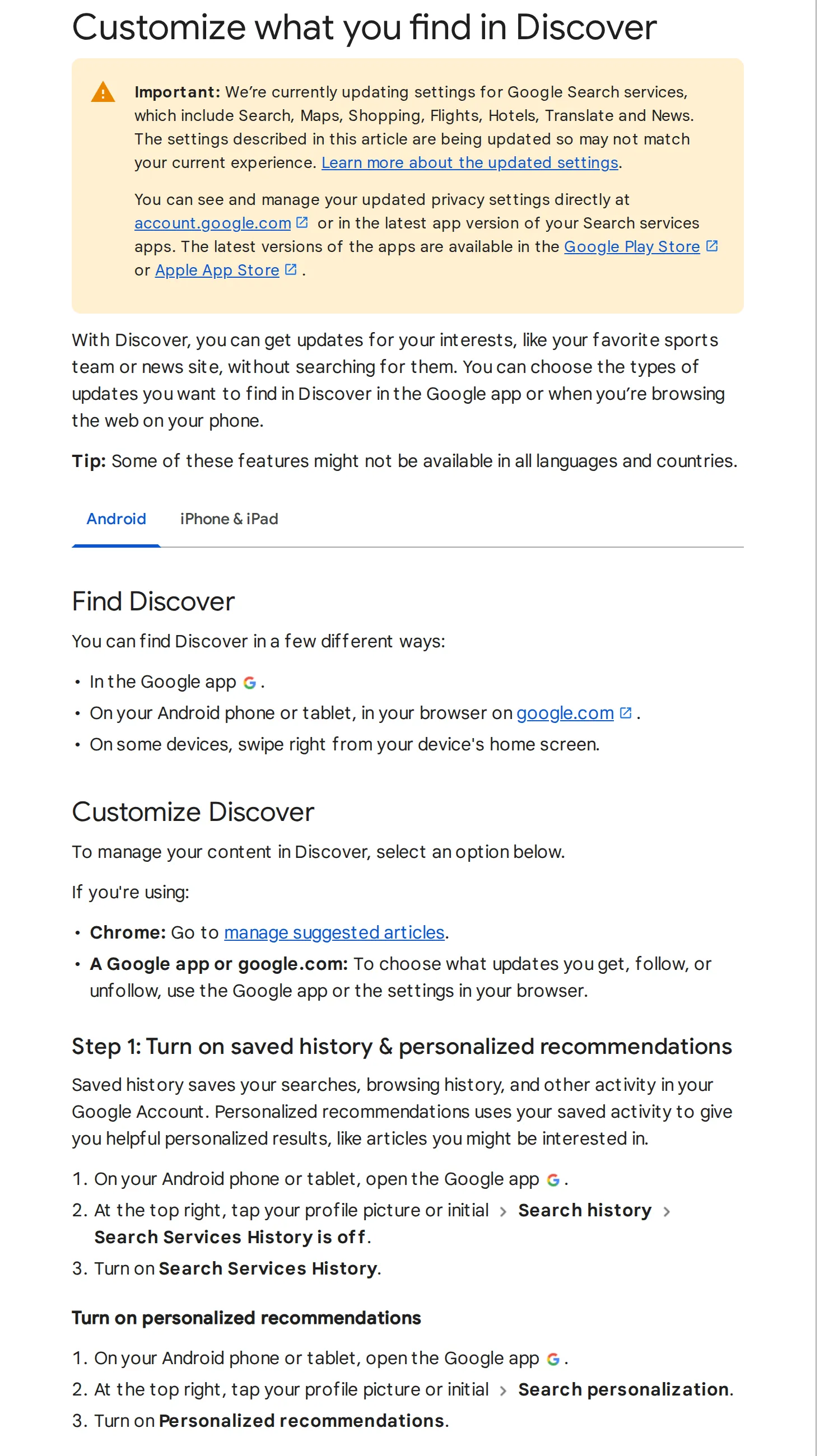 Google’s Discover help page for Android, captured 8 October 2026. Source: support.google.com
On iPhone and iPad the page is shorter: profile picture or initial, then Search history, then Controls, then save history (Google support).
You can do the same from any browser. Go to myactivity.google.com, select Search Services History and turn it on (Google support).
Know what you are agreeing to. Turning this on saves your search queries, the results you view and the ads you click to your Google Account, among other things on Google’s list. If that is why you turned it off, you may prefer to leave it off.
Fix 3: check the account you are signed in with
A work or school account can be the whole explanation. Google’s Search Services History page says: “If you got your Google Account through your employer or educational institution, in order for your organization to use Search services, you might need to ask your administrator to turn on access to certain services.”
Workspace administrators have a switch for this, called Search and Assistant, under Apps, then Additional Google services in the Admin console. When it is off, Google says those users get an experience “similar to the experience for a user signed out of their account” (Google Workspace Help). That page does not name Discover, so treat this as the likely cause, not a confirmed one. The quick test is to switch the Google app to a personal account and see whether the feed appears.
Age matters too. Samsung notes that “account users under the age of 13 are restricted from using Discover on the Galaxy S24 series” and that the age limit “may vary by country” (Samsung support).
Fix 4: Google Discover not working on Android
The swipe-right page is gone. Google only promises it “on some devices”. On a Galaxy, Samsung’s steps are: from the home screen, touch and hold a blank part of the screen, swipe right to the Samsung News or Google Discover page, and tap the switch at the top. Galaxy phones and tablets come with both Discover and Samsung News, so if you see Samsung News where Discover used to be, the same screen lets you pick Discover again (Samsung support). Samsung also says “The availability of Google Discover may vary depending on your country, carrier, and model.”
We could not find a Google help page that documents this switch for Pixel or other launchers, so we have left those menu paths out instead of guessing.
The feed is blank or will not refresh. Discover lives in the Google app, so Google’s general steps for an Android app that is not working apply, in this order (Google Play Help):
- Restart the phone. On most phones, hold the Power button for about 30 seconds or until it restarts.
- Check for an Android update in your phone’s Settings app.
- Update the app: open the Play Store, tap the profile icon, then Manage apps & devices, and look under “Updates available”.
- Force stop the app, then clear its cache and data, both through your phone’s Settings app.
Google does not give exact menus for step 4 because “Settings can vary by phone”. It also notes that clearing the cache is “a short-term solution”. Restart after each step to see whether it worked.
Fix 5: Google Discover not working on iPhone
There is no swipe-right Discover page on an iPhone. Google’s iPhone page lists only the Google app and google.com, so nothing is broken if you were looking for it on the home screen.
Inside the Google app, check the Discover switch from Fix 1 and the history setting from Fix 2. Then update the app. The App Store listing says it requires iOS 16.0 or later (App Store), so an older iPhone may be stuck on an old version.
If Discover works but the feed changed
A feed that looks different is not always a fault. On February 5, 2026, Google released a Discover core update meant to show “more locally relevant content from websites based in their country” and to reduce “sensational content and clickbait”. It went first “to English language users in the US”, with other countries and languages to follow “in the months ahead” (Google Search Central). Sites you used to see may have dropped out for that reason.
Google keeps a Search Status Dashboard, but it reports on Google’s own systems, grouped under crawling, indexing, ranking and serving. It cannot tell you whether a setting on your phone is the cause.
If the real complaint is what Discover chooses to show you, no setting fixes that. Our Google Discover alternatives post compares feeds you can fill yourself, and what is RSS explains how those work.
FAQ
Why is Google Discover not working?
The usual causes are that the Discover switch in the Google app is off, that Search Services History or Personalized recommendations is off in your Google Account, or that you are signed in with a work or school account whose administrator has limited Search services.
Why is Google Discover not working on Android?
Check the Google app first: profile picture, Settings, General, Discover. If the swipe-right page is missing on a Galaxy, touch and hold the home screen, swipe right and use the switch at the top. If the feed is blank, restart, update the Google app and clear its cache.
Why is Google Discover not working on iPhone?
On iPhone, Discover only exists inside the Google app and on google.com in your browser. Open the Google app, check Settings, General, Discover, make sure your search history is being saved, and update the app, which needs iOS 16.0 or later.
How do I get Google Discover?
Open the Google app, or go to google.com in your phone’s browser. On some Android phones you can also swipe right from the home screen. Google says some Discover features are not available in all languages and countries.
Does Google Discover need my search history turned on?
Google lists turning on saved history and Personalized recommendations as step 1 of setting up Discover, and says Discover is based on your activity. Google does not say what the feed looks like with both off, so check them before anything else.
If the switches are on, the account is personal and the app is up to date, and Discover still will not load, post in Google’s help community from the link at the bottom of its Discover help page. And if you turned history off on purpose, leave it off: a reader you fill yourself, such as Hushread or any RSS app in our guide to a news app without an algorithm, does not need it.