
Disclosure: Hushread is my app. I’ve tried to be fair, and I say where the others are the better choice.
To turn off Google Discover, open the Google app, tap your profile picture or initial at the top right, then Settings, then General, and turn off Discover. The steps are the same on Android (Google Search Help) and on iPhone or iPad (Google Search Help). That switch only covers the Google app, though. Discover also appears on google.com, on Chrome’s new tab page and, on some Android phones, one swipe right from the home screen, and each of those has its own switch.
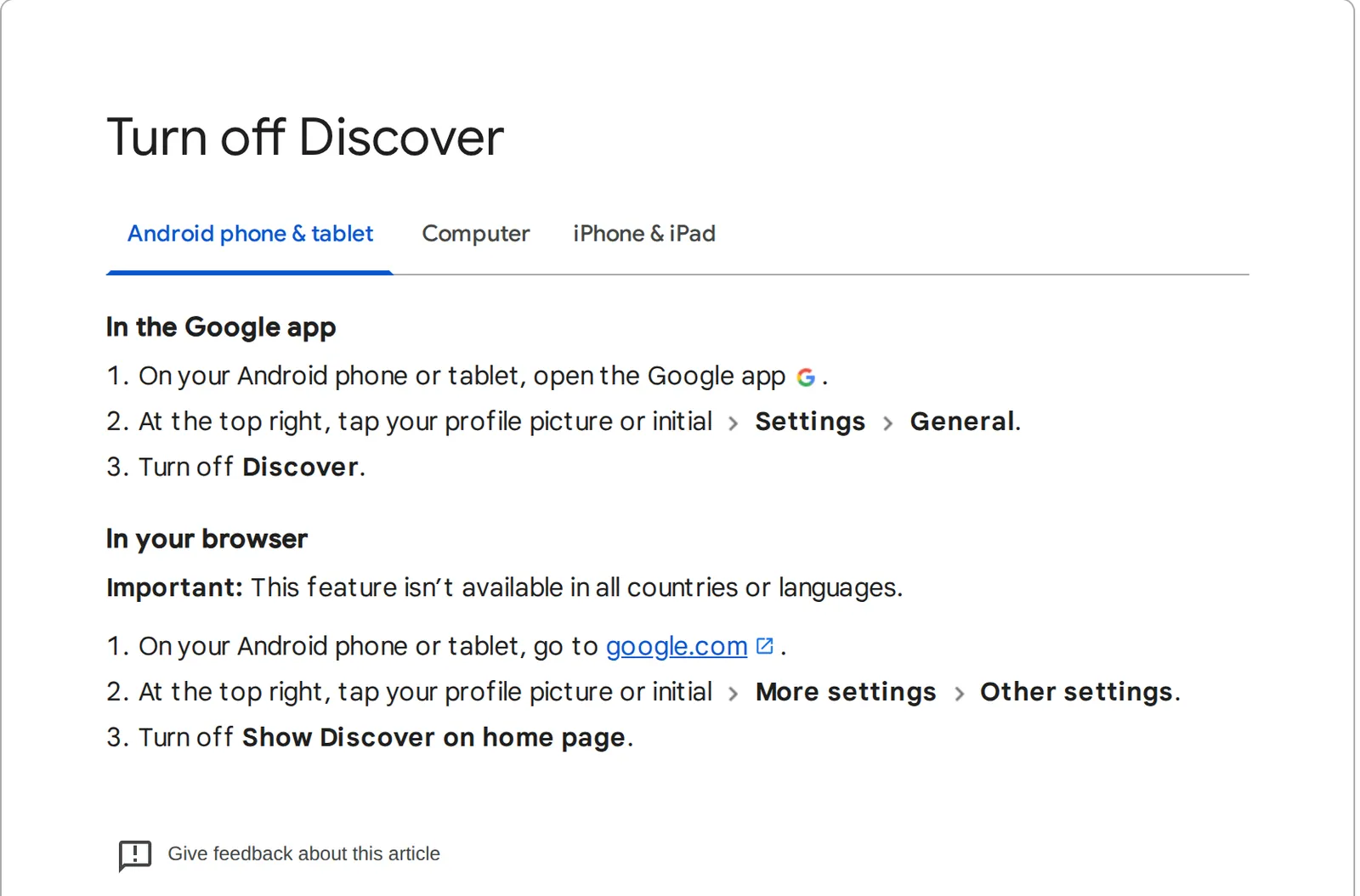 Google Search Help, “Turn off Discover”, Android tab, 8 November 2026. Source: support.google.com
Every place Discover shows up, and its switch
| Where you see the feed | The switch |
|---|---|
| Google app (Android, iPhone, iPad) | Profile picture › Settings › General › Discover |
| google.com in a phone browser | Profile picture › More settings › Other settings › Show Discover on home page |
| google.com on a computer | Settings (bottom right) › Search settings › Other settings › Discover |
| Chrome new tab page, Android | More › Customize new tab page › Discover feed |
| Chrome new tab page, iPhone and iPad | Settings next to Discover › Turn Off |
| Swipe right on a Galaxy home screen | Touch and hold the home screen, swipe right, the switch at the top |
Each is a separate switch, so if the feed keeps turning up after you’ve switched it off, check the other rows before assuming the first switch failed.
Turn off Discover on google.com
Some phones show Discover under the search box when you open google.com in the browser. On Android or iPhone, go to google.com, tap your profile picture or initial at the top right, then More settings, then Other settings, and turn off Show Discover on home page. Google notes that this feature “isn’t available in all countries or languages”, so the switch may be missing where the feature isn’t offered.
On a computer, go to google.com, click Settings at the bottom right, then Search settings, then Other settings, and turn off Discover (Google Search Help).
Turn off Discover in Chrome
Chrome’s new tab page carries the same kind of feed, and the Google app switch doesn’t touch it.
On Android: open Chrome and a new tab, tap More at the top right, then Customize new tab page, then Discover feed, and turn it off. Google says that to customize the new tab page “you must be signed in to your Google Account” and use Google as your default search engine (Chrome Help). There’s a shorter route too: on a new tab, tap the settings icon next to Discover by Google and choose Turn off, as a realme support page updated in February 2025 shows (realme support).
On iPhone and iPad: open Chrome, and next to Discover tap Settings, then Turn Off. Or tap New Tab, then Edit at the top left, and switch off Discover Feed. Google says the feed is on by default, and that once you sign in to Chrome your Site Shortcuts, Cards and Discover Feed preferences sync from your previous device across iOS devices (Chrome Help). That cuts both ways: switch it off once while signed in and your other iPhone or iPad should follow.
Turn off the Discover page on your Android home screen
On a Samsung Galaxy, touch and hold a blank part of the home screen and swipe right to reach the page with Google Discover or Samsung News, then “Tap the switch at the top to turn off both services.” The same switch turns them back on, and from that screen you can choose Samsung News instead of Discover (Samsung support).
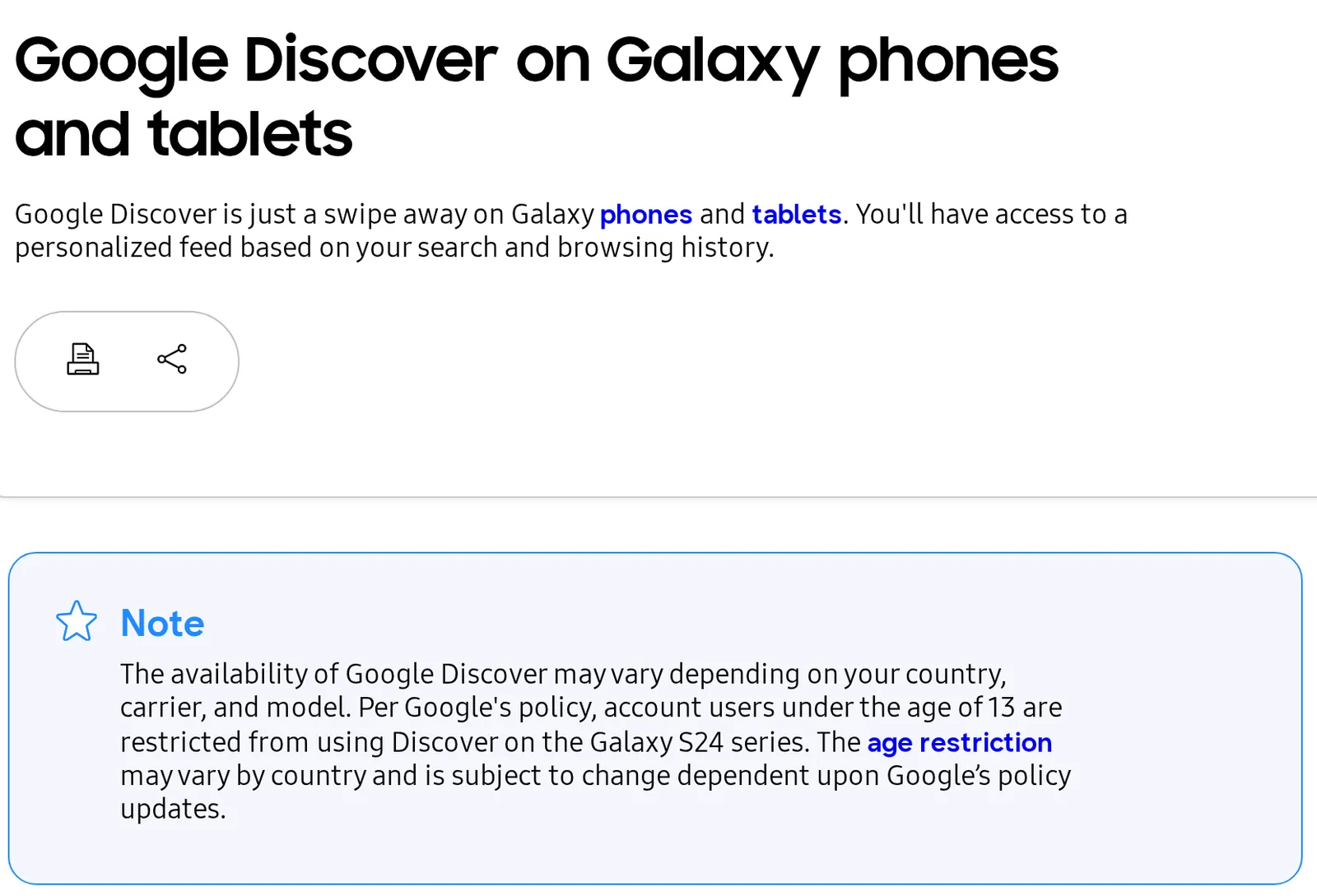 Samsung US support page, 8 November 2026. Source: samsung.com
Samsung describes it as “a personalized feed based on your search and browsing history”. Its note adds that “The availability of Google Discover may vary depending on your country, carrier, and model.”
On other Android phones, Google only says the swipe-right page exists “On some devices” (Google Search Help). On those phones, try touching and holding an empty spot on the home screen and looking in the home screen settings for a Google or Discover switch; the wording varies by phone maker.
What turning off Discover doesn’t do
It doesn’t stop Google’s notifications. The Google app’s alerts are a separate setting. It sends notifications about “topics that you might be interested in like TV shows, sports teams, and trending search topics”, plus alerts about the weather and crises in your area. To stop them, open the Google app, tap your profile picture, then Settings, then Notifications, and tap Turn off next to each category (Google Search Help).
It doesn’t turn off Google News. Google News is its own app with its own feed and alerts, so its switches live in that app. My guide to stopping breaking news alerts has the Google News steps.
It doesn’t stop Google learning from you. Chrome’s help page says suggestions are based on your recent Web & App Activity, and that to stop activity-based suggestions you turn off Web & App Activity in your Google Account’s activity controls (Chrome Help). Hiding the feed and stopping the data that feeds it are two different switches.
Keep Discover but show less of it
If the problem is a few topics, not the whole feed, you can prune it. On a Discover card, tap More, then Not interested in the topic or Don’t show content from the site (Google Search Help). To undo either, open the Google app’s Settings, then Interests, then Not interested, and tap Unhide. Google notes on the same page that it’s “currently updating settings for Google Search services”, so these menu names may move.
To turn Discover back on later, flip the same switch. If it doesn’t come back, my Google Discover not working guide covers the account settings it depends on.
If you turned it off because you didn’t choose what it showed
Discover picks stories for you: Google describes it as content “related to their interests”, based on “their Web and App Activity” (Google Search Central). Turning it off removes the guessing, and the news with it. If you’re weighing Google News instead, Google News vs Google Discover explains how the two differ.
A feed reader is the other route: you pick the sources, and it shows everything they publish, newest first. In Hushread, nothing is ranked or injected between your sources, so no app update can slip a recommended story back into your feed; the free plan has no limit on sources. The Google Discover alternatives post compares it with the other apps that work this way.
FAQ
How do I turn off Google Discover on Android?
Open the Google app, tap your profile picture, then Settings › General and turn off Discover. If the feed also appears when you swipe right on your home screen or in Chrome’s new tab, switch those off separately.
How do I turn off Google Discover on iPhone?
In the Google app, tap your profile picture, then Settings › General and turn off Discover. In Chrome for iPhone, tap Settings next to Discover on a new tab and choose Turn Off.
How do I use Google without the news feed?
Turn off Discover in the Google app, Show Discover on home page on google.com, the Discover feed on Chrome’s new tab page and, on a Galaxy, the switch on the swipe-right page. Each has its own switch, so do all four.
How do I turn off Google News?
Google News is a separate app from Discover. To stop its alerts, tap your profile picture in Google News, then News settings › Notifications, and turn off Get notifications. Google says you must be signed in to change these (Google News Help).
How do I turn Google Discover back on?
Use the same switch you turned off, such as Settings › General › Discover in the Google app. On a Galaxy, the switch at the top of the swipe-right page turns it back on.
If Discover suits you apart from a few topics, prune it with Not interested and keep it. If you’d rather have news without the picking, the readers in a news app without an algorithm, Hushread among them, show what your chosen sources publish, in order.